Mac beta for remote movie nights

Watch local films together, with the video call inside the player.

Each person opens their own movie file. FilmAlong syncs play, pause, seek, subtitles, camera, and a single film/call volume mix.

Download Mac beta Install steps Apple Silicon Macs · 147 MB · v0.3.0 · unsigned beta
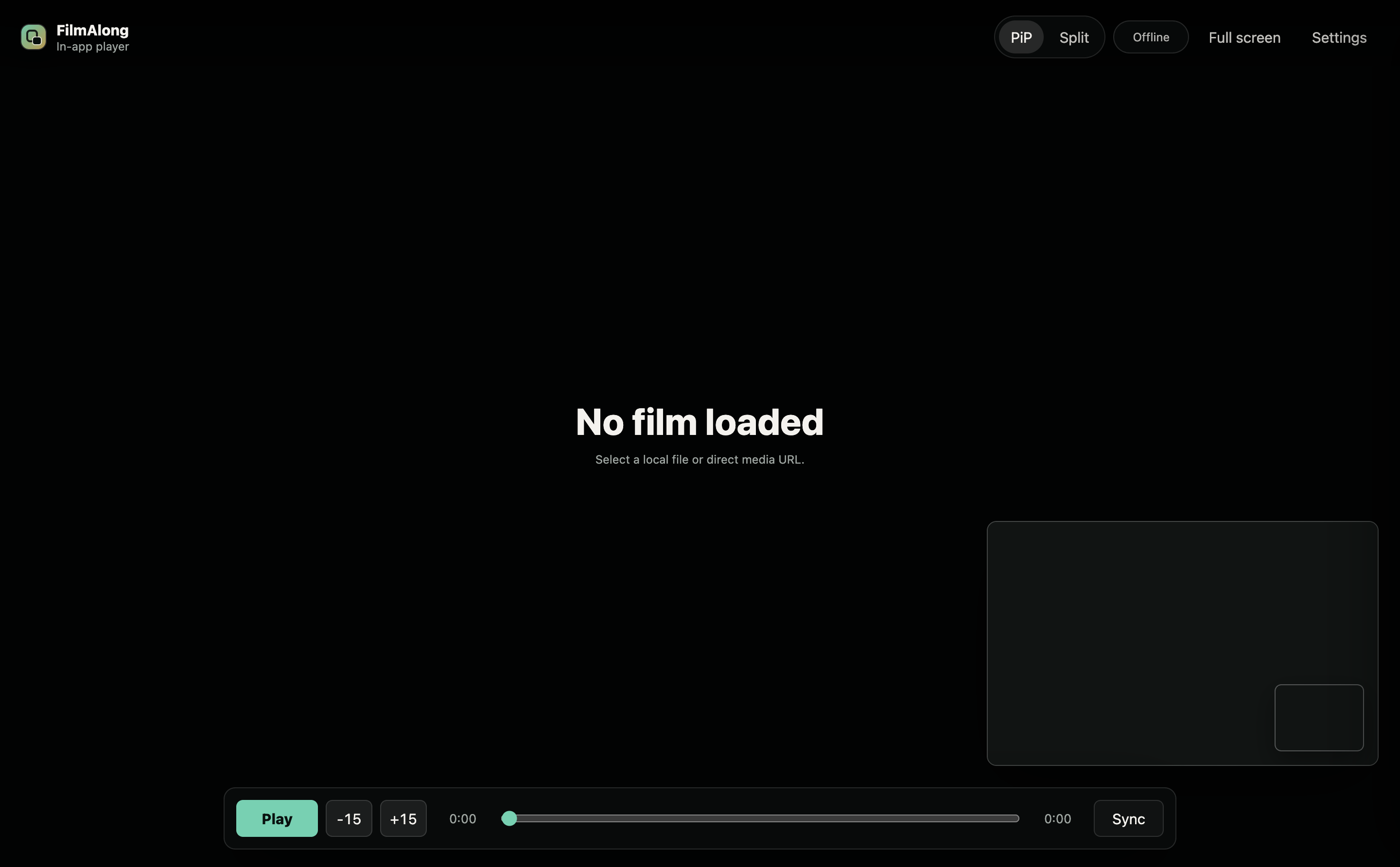
FilmAlong app with a film, video call panel, and playback controls
No movie upload Files stay on each Mac.
One shared timeline Play, pause, and seek stay together.
Call audio stays tame Use one slider for film vs call.

Why this exists

FaceTime and WhatsApp treat the call as more important than the film.

FilmAlong puts the call and the in-app player under one interface, so you can keep the movie loud enough and the conversation comfortable. For formats the browser player cannot handle, the app also bundles mpv as a compatibility fallback.

01

Both choose a local file

Use matching downloads for best sync. The room server only coordinates timing and WebRTC signaling.

02

One person controls playback

Play, pause, seek, offset, and subtitles are built into the same sparse control surface.

03

PiP or vertical split

Keep the call in a corner or give it a full side panel, with fill/fit camera framing.

First install

Do these steps once on each Mac.

This beta is unsigned because I have not paid for Apple's Developer Program / notarization flow yet. Apple-signed apps open normally; this command is the workaround for this one app until that is done.

  1. Download the app. Click Download Mac beta. A file named FilmAlong-0.3.0-arm64.dmg will appear in Downloads.
  2. Open the downloaded file. Double-click the DMG file. A window will open with FilmAlong inside.
  3. Move it to Applications. Drag FilmAlong into the Applications folder shown in that window.
  4. Open Terminal. Press Command + Space, type Terminal, then press Return.
  5. Paste this command. Click Copy command, click inside Terminal, press Command + V, then press Return.
    APP="/Applications/FilmAlong.app"; xattr -dr com.apple.quarantine "$APP" 2>/dev/null || sudo xattr -dr com.apple.quarantine "$APP"; open "$APP"
  6. If it asks for a password, type your Mac password. You will not see dots or letters while typing. That is normal. Type the password and press Return. FilmAlong should open.

Watch together

After installing, use it like this.

  1. Both people open FilmAlong. Click Allow if macOS asks for camera or microphone access.
  2. Use the same room code. Leave it as date-night or type your own code. Both people click Join.
  3. Each person opens their movie. Click Open local film and choose the video file on that Mac.
  4. One person presses Play. Use the Film/Call slider if the movie or call is too loud.

Download details

Apple Silicon beta

Works on M1, M2, M3, and M4 Macs. The current DMG includes the app and bundled mpv.

SHA-256 a4d22a3483f563195f782e83214954f4df7a92c2e8dffeae09100bb64781cb34